 +1 562-254-5145


Most teams don’t notice how much time slips away during the day. It rarely comes from one big task. It builds up through small actions that repeat over and over. Copying updates, checking statuses, switching between systems, and asking questions that should not be necessary.
On their own, these things feel minor. Over time, they start to shape how the team works.
As systems grow, this kind of friction grows with them. More deals, more tickets, more moving parts. Keeping everything aligned starts taking more effort than it should.
That is usually when teams begin looking for a better way to connect their tools. Not just to move data, but to remove the need for constant manual work.
The tools below focus on exactly that. Each of them reduces a different kind of overhead, which is where most of the time is actually lost.
Where the Time Actually Goes
It is easy to assume that time is lost in complex tasks. In reality, most of it disappears in routine actions that repeat throughout the day.
A quick update in one system leads to another update somewhere else. A missing detail triggers a message. A small inconsistency needs to be checked again.
It often looks like this in practice:
- Updating the same information in multiple systems
- Switching between tools to check progress
- Asking for status updates that should already be visible
- Fixing inconsistencies between records
- Manually triggering actions that could be automated
None of these is difficult. That is exactly why they are easy to overlook.
1. Peeklogic Salesforce Azure DevOps Connector

The Peeklogic Salesforce Azure DevOps Connector focuses on a very specific gap between sales and development workflows.
Instead of treating integration as something separate, it brings Azure DevOps directly into Salesforce. This removes the need to constantly switch between tools just to stay updated.
It also keeps both systems aligned automatically, which reduces the amount of manual work required to maintain consistency.
Teams usually rely on it for:
- Two-way synchronization between Salesforce and Azure DevOps
- Mapping of standard and custom fields, including statuses and comments
- Real-time updates without manual input
- Managing DevOps work items inside Salesforce
- Automation through Salesforce Flow
The time savings come from removing small actions that would otherwise happen every day.
2. Zapier

Zapier is often used when the goal is to automate simple actions quickly.
It connects systems through triggers. When something happens in Salesforce, it can trigger a corresponding action in another system. This makes it useful for reducing repetitive tasks.
It works best when workflows are straightforward and do not require constant synchronization.
Teams use it for:
- Automating actions based on Salesforce events
- Updating other systems when records change
- Reducing manual data entry
- Connecting Salesforce with multiple tools without development
- Creating quick workflows with minimal setup
It is most effective when many small actions can be automated.
3. Exalate

Exalate focuses on how data is shared rather than just when actions happen.
It allows teams to define how synchronization works in detail. This makes it useful when workflows are more complex and require more control.
Instead of relying on predefined rules, teams can adjust the behavior of the integration based on their needs.
Teams rely on it for:
- Customizing how data is shared between systems
- Controlling synchronization behavior
- Handling more complex workflows
- Connecting multiple platforms
- Adapting integration to specific processes
It helps reduce time lost on corrections and misunderstandings.
4. Workato
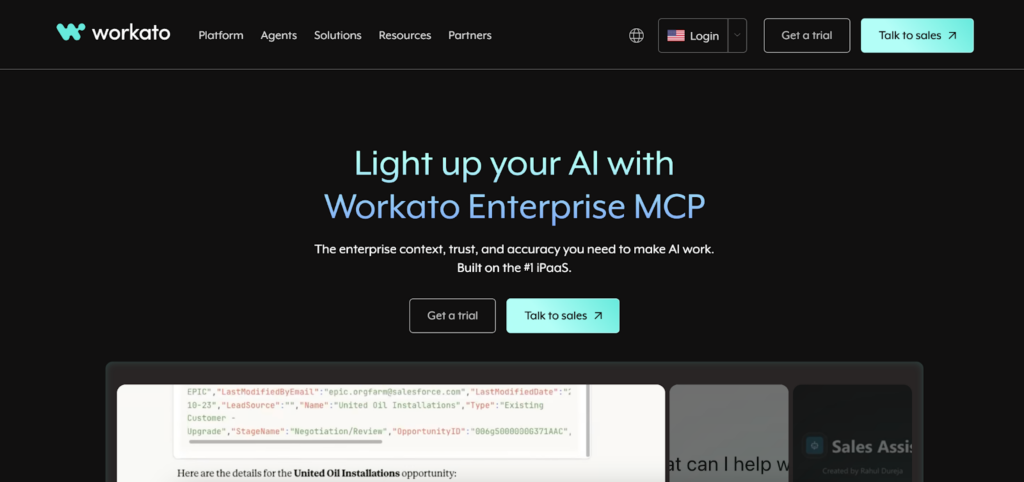
Workato is designed for workflows that go beyond simple connections between two systems.
It allows teams to automate processes that involve multiple steps and multiple tools. This helps reduce the number of manual actions required to move work forward.
Instead of handling tasks individually, it connects them into a structured flow.
Teams use it for:
- Automating multi-step workflows
- Connecting Salesforce with multiple platforms
- Managing data across systems
- Supporting larger operational processes
- Scaling workflows without adding manual work
It is often used where coordination between systems becomes a bottleneck.
5. MuleSoft
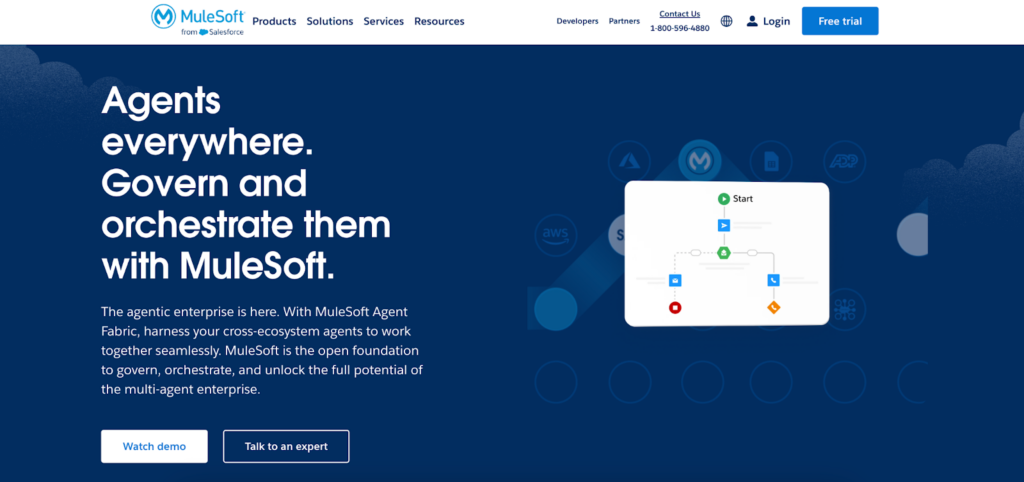
MuleSoft approaches integration as part of a larger system.
Instead of connecting tools directly, it builds an API layer that defines how systems interact. This creates a more structured environment where data flows consistently.
It is typically used in setups where multiple systems need to stay aligned over time.
Teams use it for:
- Building API based integrations
- Standardizing data flow across systems
- Connecting multiple services through one structure
- Improving consistency between platforms
- Supporting complex environments
The main benefit comes from reducing long-term inefficiencies.
6. Boomi

Boomi provides a balance between simplicity and flexibility.
It offers a visual way to build integrations, which makes it easier to set up workflows without heavy technical effort. At the same time, it can support more complex processes when needed.
This makes it a practical option for teams that want to improve efficiency without overcomplicating their setup.
Teams rely on it for:
- Building integrations through a visual interface
- Reducing setup time compared to traditional tools
- Supporting both simple and advanced workflows
- Scaling integrations as systems grow
- Connecting with a wide range of platforms
It helps save time both during setup and ongoing use.
Why These Tools Save Time in Different Ways
All of these tools reduce manual work, but they do it differently.
Some focus on removing small repetitive actions. Others reduce complexity across systems. Some are better for quick automation, while others are designed for long-term structure.
The difference matters because time is not lost in one place. It is spread across many small actions.
What Changes Once the Right Tool Is in Place
When integration starts working properly, the changes are not dramatic. They show up in everyday work.
Fewer questions. Fewer corrections. Less time spent checking whether something is up to date.
Over time, this leads to:
- Less manual coordination between systems
- More consistent and reliable data
- Faster transitions between teams
- Better visibility across the workflow
These improvements build gradually, but they change how work moves through the system.
Choosing Based on Where Time Is Lost
The best way to choose a tool is to look at where time is currently being lost.
If the issue is repetitive tasks, simple automation may be enough. If the issue is complexity, a more structured solution may be needed.
It helps to ask:
- Are tasks being repeated manually
- Is the data inconsistent between systems
- Do teams rely on constant updates
- Are workflows becoming harder to manage
- Is time lost in coordination
The answers usually make the choice clearer.
Small Improvements Add Up
No single tool will suddenly free up hours overnight.
What these integrations do is remove small pieces of friction. One update that no longer needs to be copied. One check is no longer necessary. One step that happens automatically.
Individually, it does not look significant.
But across dozens of actions every day, the impact becomes clear. That is how teams start saving time without changing how they work, just by removing what slows them down.
